Steam Deck Verified: Criteria, Review Process and Ratings
Steam Deck verification explained for developers: the 4 ratings, exact Verified criteria, how to request a review, and what the badge does for visibility.
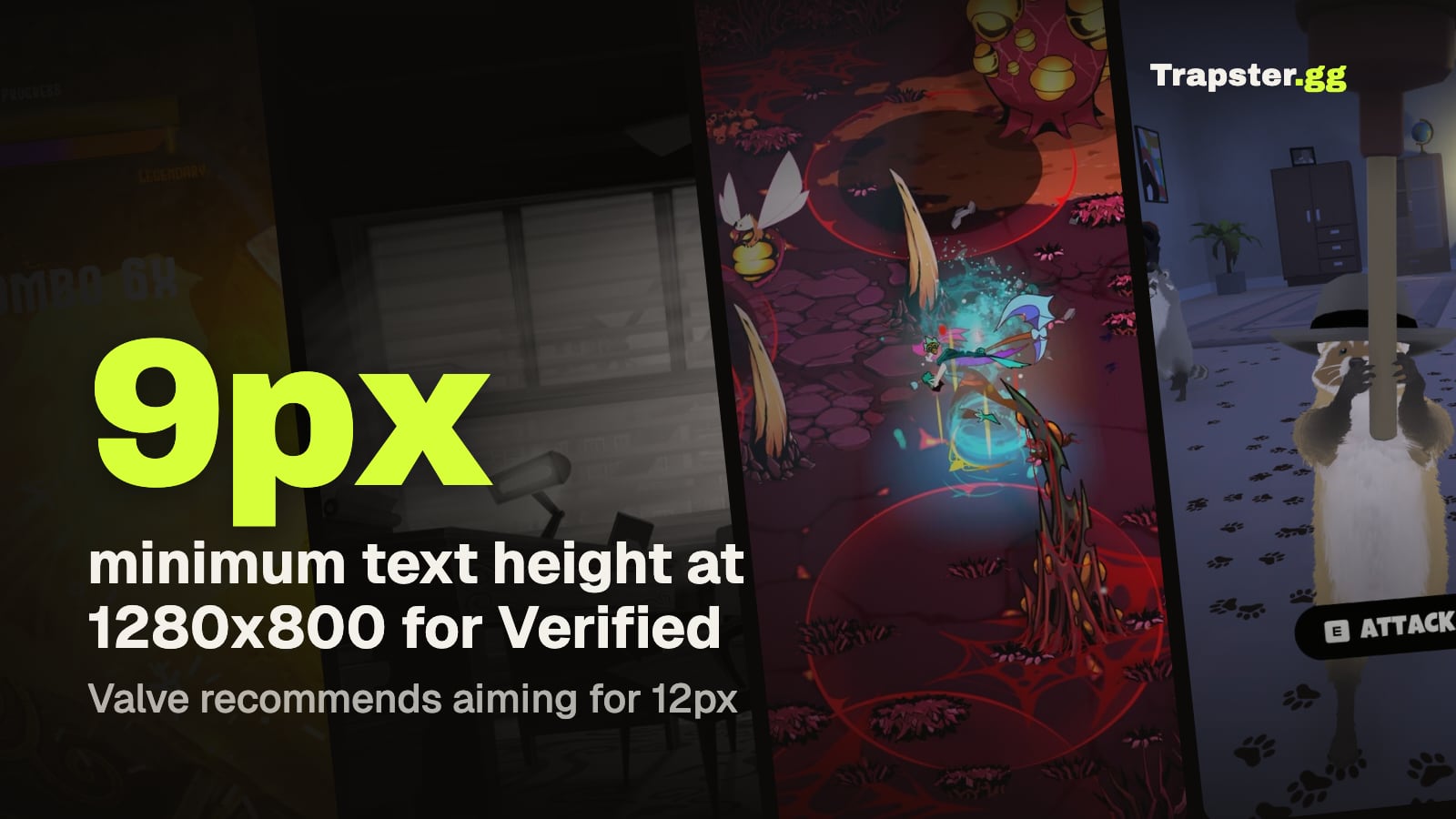
Short answer: Steam Deck verification is a free compatibility review that Valve runs on your game, then publishes as one of four badges: Verified, Playable, Unsupported or Unknown (Steamworks: Compatibility Review). To get Verified you need full controller support with the right glyphs, an on-screen keyboard for text entry, 30fps at 800p in the default settings, no launcher that breaks controller navigation, and no text smaller than 9 pixels at 1280x800. You request the review from the Technical Tools section of your app in Steamworks after your build has passed normal build review, and Valve aims to return results within a week. The same review now also rates your game for Steam Machine and for other SteamOS devices.
The four ratings and what they mean
Valve defines each badge in the compatibility review doc.
| Rating | Valve's definition | What usually puts you here |
|---|---|---|
| Verified | Passes all compatibility checks. No configuration work is required to access all game functionality. | Every checklist item passes. |
| Playable | Works, but may need manual work from the player, such as picking a community controller config, opening the on-screen keyboard by hand, or using the touchscreen to get through a launcher. | One or more checklist failures. Valve says "most failures" land here. |
| Unsupported | Does not function on the device because of Proton or hardware incompatibility. | Unsupported middleware (some anti-cheat, some media codecs) or Windows features Proton doesn't handle yet. |
| Unknown | Has not completed the compatibility review. | Not reviewed yet. |

Valve is strict about the line between these. In its March 2022 Deck Verified update, the team wrote that a game showing controller glyphs 99% of the time but asking you to "press F" once is Playable, not Verified, and a game where one optional minigame crashes is Unsupported.
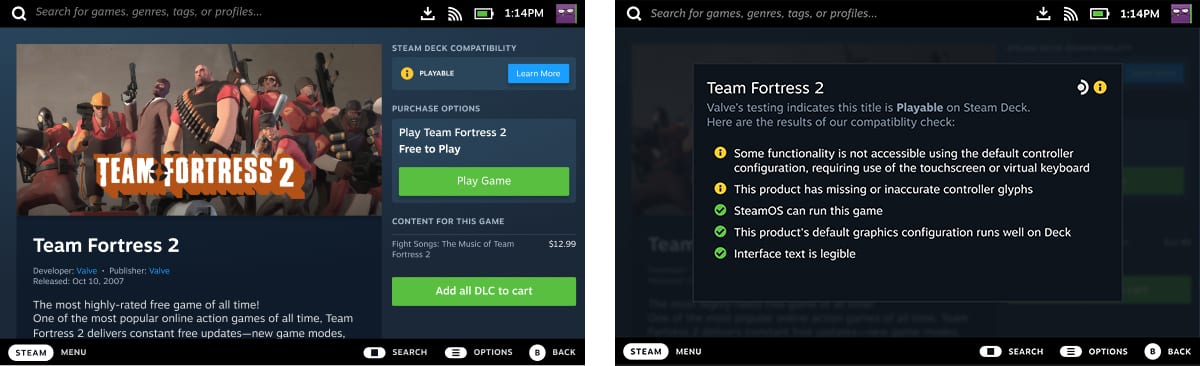
A rating never blocks sales. Valve states that the results "will not affect whether your game is available to customers on Deck or Machine, but will affect how it is presented." You also cannot hide your game from the Deck store or library: Valve says removing products there "isn't a supported feature."
The exact Verified criteria
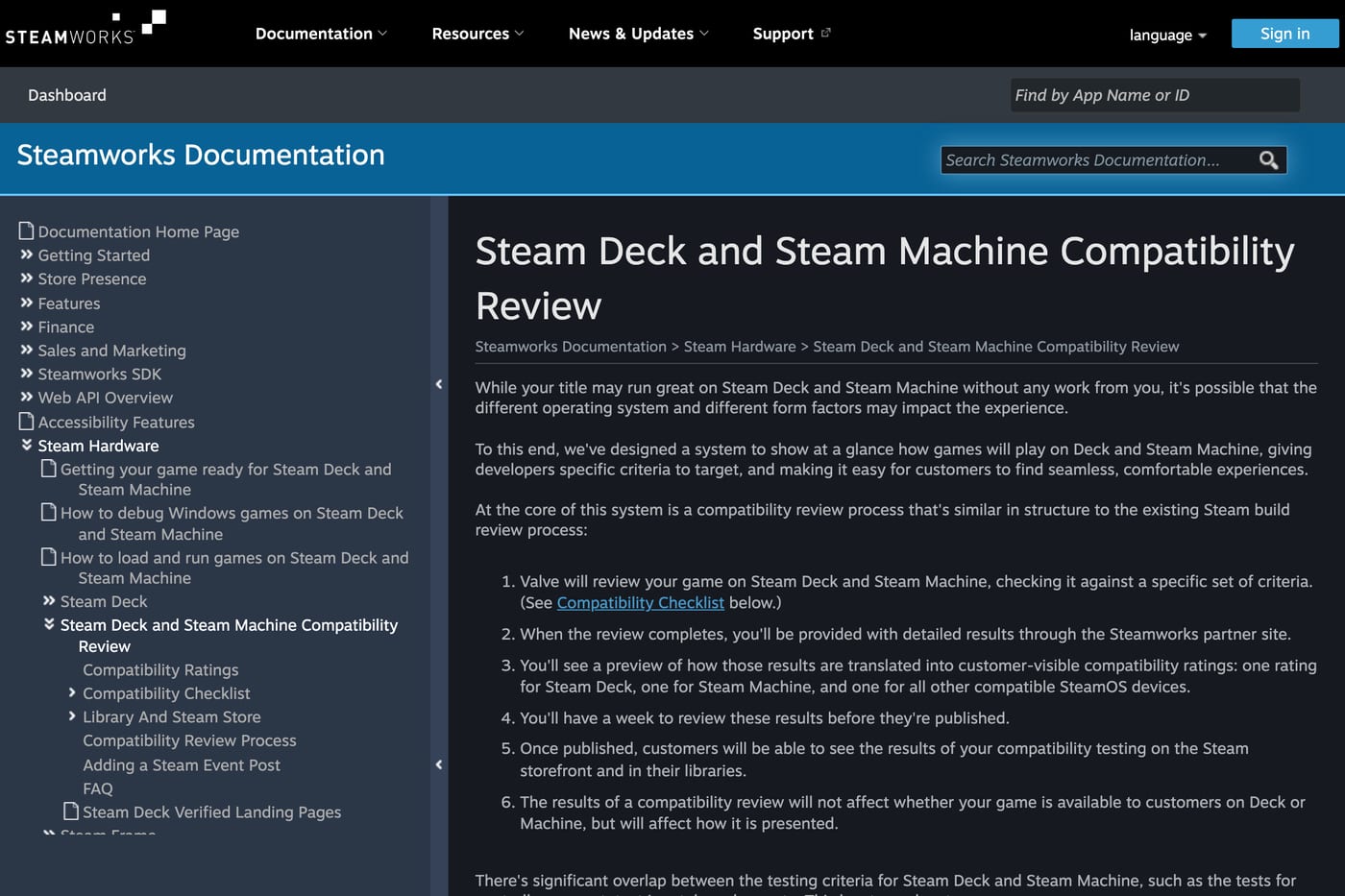
The checklist has two parts: requirements for both Steam Deck and Steam Machine, and display tests that apply only to Deck. All of this comes from the compatibility review doc.
Input
- Controller support. Your game must support Deck's physical controls (on Machine, the Steam Controller's inputs). The default controller configuration must give access to all content, and players must not need to change any in-game setting to turn controller support on.
- Controller glyphs. On-screen prompts must match the input in use: Deck, Steam Controller or Xbox. Keyboard and mouse glyphs must not appear when they are not the active input. Valve strongly recommends the Steam Input API, which picks the right glyphs automatically.
- Text input. If players type anything, such as a character or save name, you must either call a Steamworks text entry API to open the on-screen keyboard or ship your own entry that works with a controller alone.
Performance
- Default configuration. Out of the box the game must hit a playable framerate: 30fps at 800p on Deck and 30fps at 1080p on Machine.
Seamlessness
- No device warnings. The game must not tell players that the OS (for example, a Linux distribution) or the hardware (for example, the GPU) is unsupported.
- Launchers. A launcher must meet the same rules, including full controller navigation. Valve says it recommends "strongly against" requiring a launcher at all.
Deck only display tests
- Resolution. The game must run at a resolution Deck supports. Valve recommends native 1280x800, or 1280x720.
- Text legibility. Text must be readable at 12 inches (30 cm). In Valve's words, "the smallest on-screen font character should never fall below 9 pixels in height at 1280x800." Nine pixels is the floor. Valve recommends aiming for 12px and offering a text size option.
Valve skips the display tests for Steam Machine because screen size varies with the TV or monitor.
Common reasons games miss Verified
Valve's docs and its own examples point to a short list of repeat offenders.
- Keyboard prompts in controller play. One "press E" tooltip is enough for Playable. The recommendations doc also flags prompts that flip between controller and keyboard icons when mouse and stick input mix.
- Small text. Test at 1280x800 and measure your smallest glyph, usually in tooltips or HUD numbers, not the body text.
- Launchers. Valve's Proton doc says .NET and WPF launchers are a known Proton problem and recommends folding launcher features into the game client. If you must keep one, the SetGameLauncherMode API translates controller input to keyboard and mouse.
- Missing on-screen keyboard. Naming a save or a character without calling the Steamworks text input API turns into a Playable result.
- Anti-cheat. Proton supports Easy Anti-Cheat and BattlEye, but neither works without setup. For EAC you enable Linux as a client platform on the EAC partner site and ship the Linux library in your depot. BattlEye needs a manual configuration step through Valve or BattlEye. Valve says kernel-space anti-cheat solutions "are not currently supported and are not recommended" (Proton doc). Unsupported anti-cheat is one of the two main causes of an Unsupported badge.
- Video codecs. Media Foundation is a known Proton issue. Use VP9 or AV1.
- Default settings too heavy. If your defaults miss 30fps at 800p, ship a lower preset that loads on Deck automatically. Valve says hardware specific defaults are fine, but it recommends against locking settings by hardware.
How to request a review and a re-review
Your game reaches the queue in one of three ways: Valve adds back catalog titles that meet automated heuristics, Valve adds titles it sees as important to Steam hardware owners, or you request it yourself (Steamworks: Compatibility Review). Here is the manual path.
- Pass build review first. Valve requires a completed standard build review before you can request a compatibility review. Build review typically takes 3 to 5 business days, and Valve asks you to plan for at least 7 (Review Process); in November 2026 Valve said it was taking up to 12 business days. Unreleased games are eligible, so you can do this before launch.
- Open the request link. On your app landing page in Steamworks, go to Technical Tools and click "Steam Hardware Compatibility Review." Valve notes this link is not yet available to all partners. If you don't see it, Valve is working through released games over time, prioritizing the ones most played by Steam hardware owners.
- Pick the branch. You can choose which branch Valve tests. Without a choice it tests the default branch. If you ship a native Linux build, Valve tests it first and falls back to the Windows build under Proton if Linux fails, then publishes whichever result is better.
- Wait for results. Valve aims for results "within a week of submission," depending on queue size. You get an email and a point by point report in Steamworks for Steam Deck, Steam Machine and third-party SteamOS devices, plus a developer-only notes field from the testers (Steam Deck FAQ).
- Choose what to do with them. You can publish the results, push a fixed build and request a re-review, or dispute specific findings in the partner site. If you do nothing, results publish automatically after about a week.
- Re-review later. After an update you can file a support ticket asking for a new review. If anti-cheat blocked you before and you have since enabled Proton support, Valve says you can resubmit for a follow-up review.
Valve holds publication only if you submit a fixing build before results go live; it won't delay results "for future work." It can also re-review your game on its own, for example after a new Proton release.
Do the review well before launch: a Playable badge on launch day is public, and you can't park it. Put it on your Steam launch checklist next to build review. Demos are not eligible "other than in exceptional cases," so get the full game reviewed before your Next Fest demo brings traffic to the page.
Steam Machine and other SteamOS devices
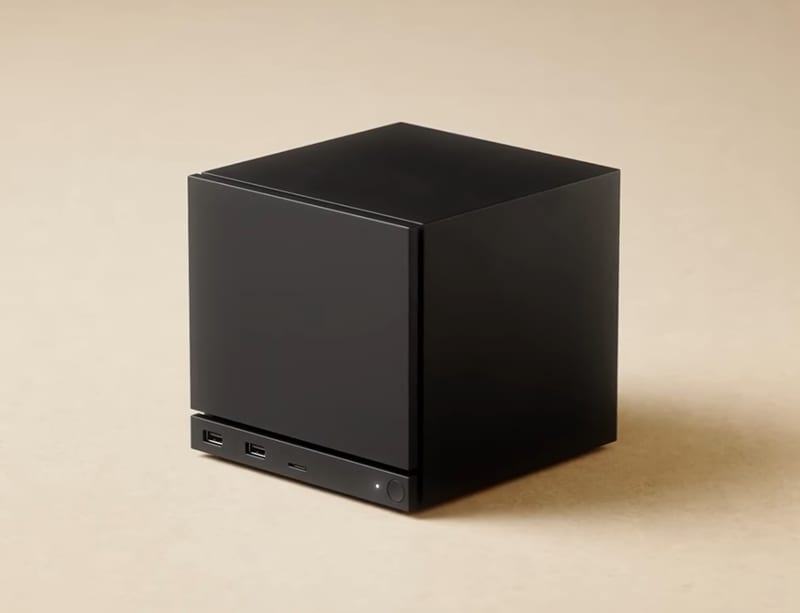
As of November 2026, Valve's docs describe one review that produces three separate ratings: Steam Deck, Steam Machine, and "all other compatible SteamOS devices" (Steamworks: Compatibility Review). The Deck and Machine ratings are independent, but Valve says "any game that is Verified on Steam Deck is guaranteed to be Verified on Steam Machine as well."
Valve's Steam Machine page for developers says dev kits are not currently available and that the best way to prepare is to work on Deck compatibility: "If your game runs well on Deck, it will also run well on Machine with no extra work required from you." The Steam client started showing Steam Machine Verified information on game capsules and details pages in the July 21, 2026 client update.
For third-party handhelds, the "SteamOS Compatible" label goes back to the Lenovo Legion Go S, which got a SteamOS Compatible library tab in the June 30, 2025 Steam Deck client update. There is no separate application; it comes out of the same review.
What the rating does for visibility and sales
Valve has published no figure on how a Verified badge changes sales, and we found no credible source that measures it. Here is what Valve does document.
- Badges in the store and library. Once published, the badge appears while players browse the store and their library, and Deck owners can filter and sort their library by compatibility (Compatibility Review).
- Search filters. Valve's developer FAQ says compatibility categories are usable as filters in Store Search for everyone, not only Deck owners (Steam Deck FAQ).
- The Deck store front page changed. That same FAQ, written before Deck launched, says the default store home on Deck shows only Verified titles. Since the April 28, 2026 client update, the Store menu on Deck opens the regular Steam home page instead of the Great On Deck hub, so treat that older answer as dated.
- Install warnings. SteamOS shows compatibility dialogs when someone installs a game that isn't verified for their hardware, and the October 13, 2026 client update extended them to desktop mode.
- Framerate data next to your badge. Since November 2026, store pages show the average framerate Deck players get, under Steam Deck Compatibility, for games that have been tested (Valve: Steam Deck Framerate). It uses opted-in players at the default frame limit and appears once a game passes a minimum threshold of data points. Valve added it because a Verified game "may not reach a framerate that some customers prefer to play at," so a weak average now sits right next to your badge.
- A free landing page. Every Verified game gets a page at
store.steampowered.com/verified/<appid>that plays your first trailer. It needs at least one trailer marked safe for all ages (Verified Landing Pages). Make sure that first trailer is your best one; our guide on how to make a game trailer covers what to lead with.
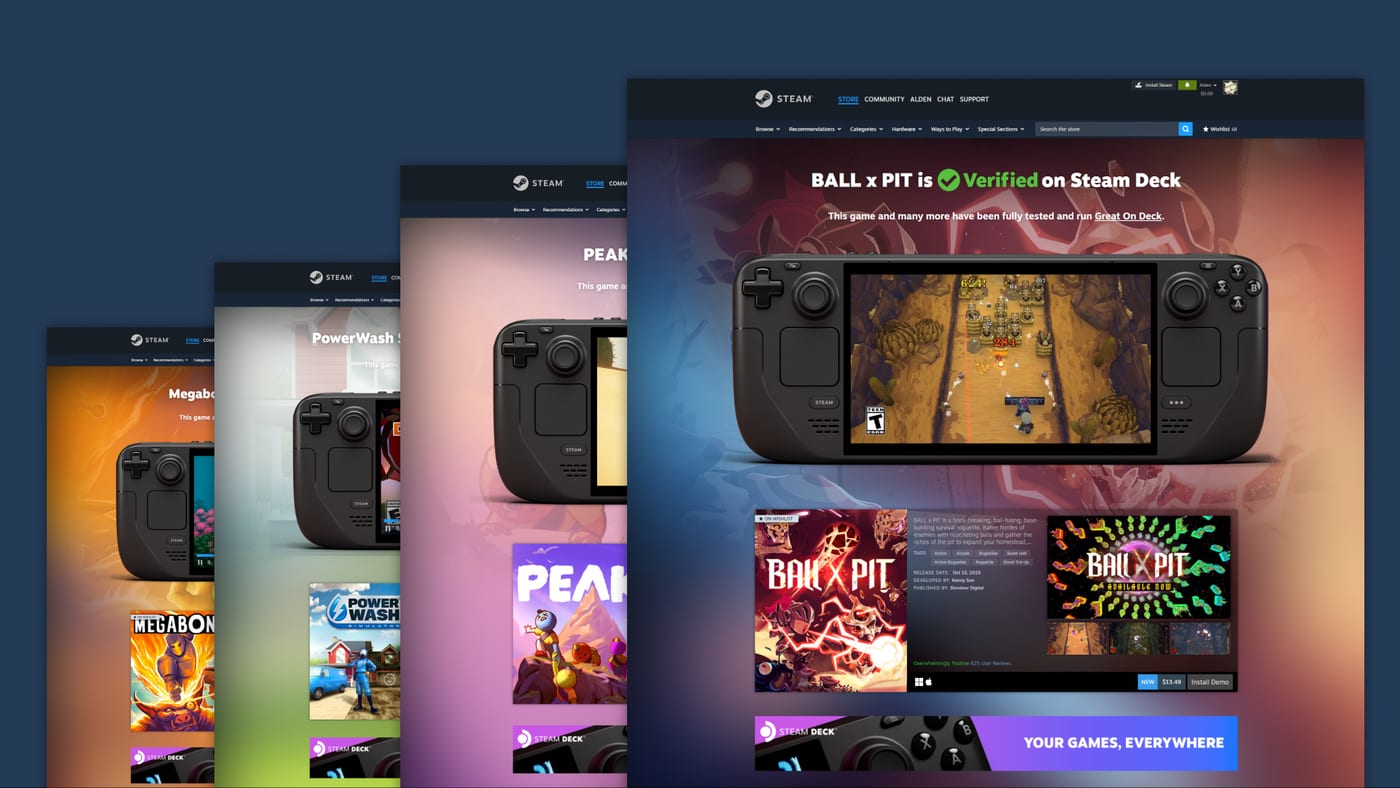
If you're Playable and working toward Verified, link a Steam event post explaining your plan through the Steam Hardware Compat Info field (Edit Store Page, Basic Info). When you reach Verified, announce it like any update that earns a visibility round.

FAQ
How long does Steam Deck verification take?
Valve aims to return results within a week of submission, though timing depends on the queue. You also need a passed build review first, which typically takes 3 to 5 business days.
Can I get my game Deck Verified before release?
Yes. Valve accepts compatibility review requests for unreleased games, as long as the build has passed standard build review.
What is the minimum text size for Steam Deck Verified?
No on-screen character may be smaller than 9 pixels tall at 1280x800. Valve recommends 12 pixels and a text size option.
Why is my game Playable and not Verified?
Usually one checklist item failed: a keyboard glyph appearing during controller play, no automatic on-screen keyboard, a launcher that needs the touchscreen, or small text. Your report in Steamworks lists exactly which test failed.
Does Easy Anti-Cheat work on Steam Deck?
Yes, but you have to enable it. You turn on Linux as a client platform on the EAC partner site and ship the Linux library in your depot, then request a follow-up review.
Is Deck Verified the same as Steam Machine Verified?
They are separate ratings from the same review. Valve guarantees that a game Verified on Steam Deck is also Verified on Steam Machine.
Does Deck Verified increase sales?
Valve has not published sales data on it. It does show the badge in the store and library, adds a filter in search, and gives Verified games a dedicated landing page.
Sources: Steamworks: Steam Deck and Steam Machine Compatibility Review, Steamworks: Getting your game ready for Steam Deck and Steam Machine, Steamworks: Steam Hardware and Proton, Steamworks: Steam Machine, Steamworks: Steam Deck Verified Landing Pages, Steamworks: Steam Deck FAQ, Steamworks: Review Process, Valve: Steam Deck Framerate, Valve: Deck Verified Update, March 2022; checked November 2026.
Get a wishlist forecast for your game
Send us your Steam page. We estimate views, creators and cost per wishlist before you spend anything.
Keep reading
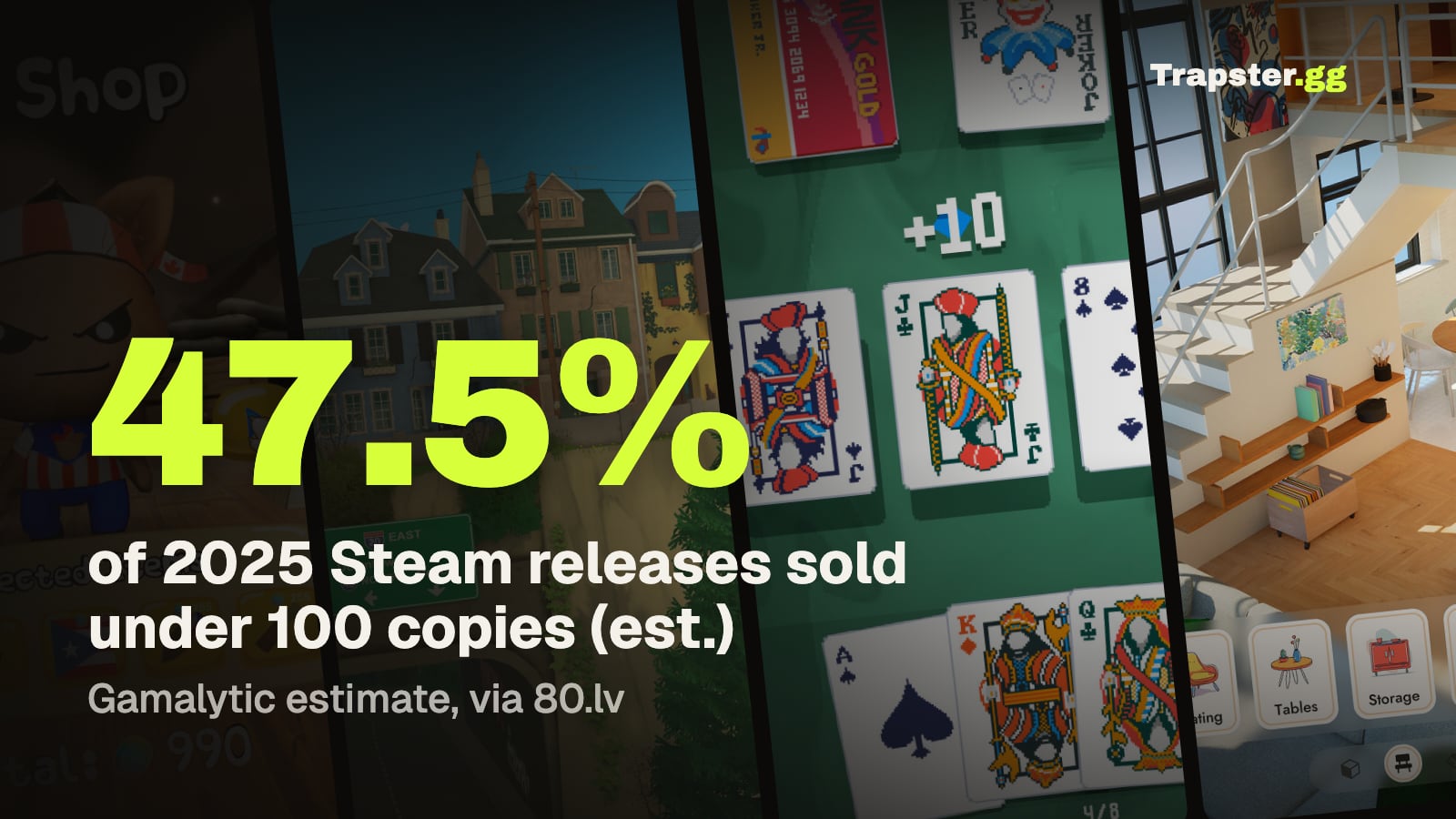
How Many Copies Do Indie Games Sell? Real Steam Numbers by Tier
Most Steam indie games sell under 1,000 copies. Real numbers by tier…

Game Marketing Hook: How to Find, Test and Show Yours
What a game marketing hook is, how to test one cheaply with…
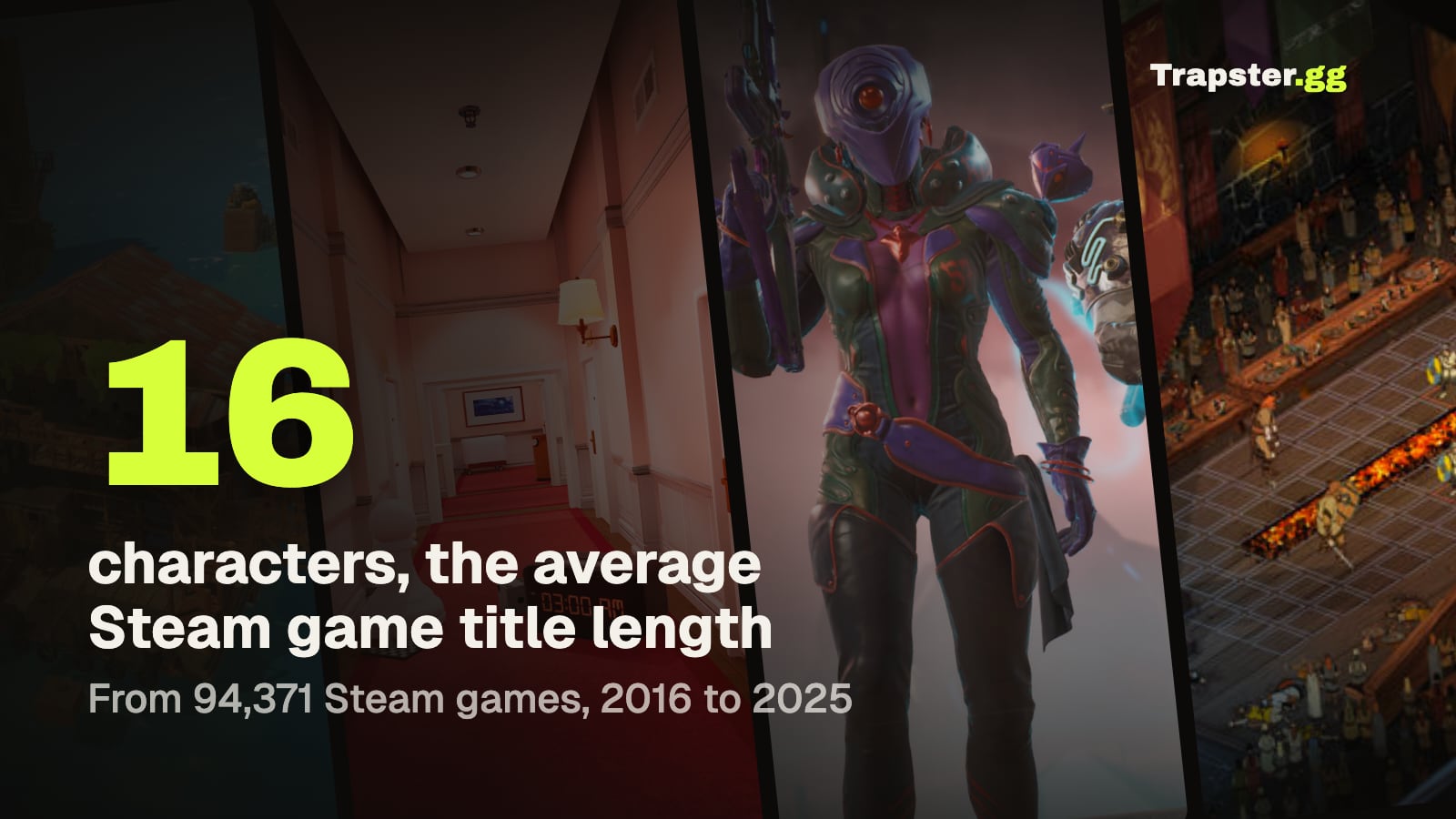
How to Name Your Game: Searchable, Memorable and Legally Safe
How to name your game: pass the Steam, Google and trademark checks…