Steam Playtest: How It Works and When to Run One
How Steam Playtest works: Open vs Limited signups, Playtest keys, setup steps, Playtest vs demo, and whether it affects your wishlists or reviews.
Short answer: Steam Playtest is a free Steamworks feature that lets you run a live test of your game with real players through a separate "child" app attached to your main game. Players request access with a button on your main store page, and you let them in either automatically (Open) or in batches you control (Limited), or you hand out Playtest keys instead. Because the Playtest is a separate app ID, playtime, wishlists, reviews and refunds stay separate from your main game, according to the Steamworks Playtest documentation. It is not a demo: as Chris Zukowski points out, a Playtest does not trigger the one-time demo wishlist notification, and it does not satisfy the Steam Next Fest demo requirement.
What Steam Playtest actually is
Valve launched Playtest in beta in November 2020 and opened it to all developers in April 2021. The Playtest FAQ explains why: developers kept asking for a low-risk way to test with live players, and many were faking it with "demos" or free "Prologue" games that collected reviews and split their audience.
Here is how it is built:
- Separate app ID. The Playtest is its own app, linked to your base game. It supports the same Steamworks features as the main game with a reduced store and community setup.
- No store page of its own. The signup button sits on your main game's page. A player can request access and still wishlist or follow the main game in the same visit.
- Free only. You cannot charge for access, sell Playtest keys, put them in paid bundles, or monetize the build with in-game purchases. Valve points you to Early Access if you want paid testing.
- Not confidential. Players sign no NDA, and Valve says plainly there "shouldn't be an expectation of secrecy." Plan for screenshots and videos to appear online.
Open vs Limited signups
| Limited (default) | Open | |
|---|---|---|
| Who gets in | You grant access in batches | Everyone who requests access |
| Selection | Steam picks at random from the signup pool, optionally filtered by country | Automatic |
| Best for | Server capacity limits, staged waves, early builds | Stress tests, builds you are confident in |
| Switching | Switch to Open at any time; pending players are accepted, usually within minutes | Switch back to Limited at any time |
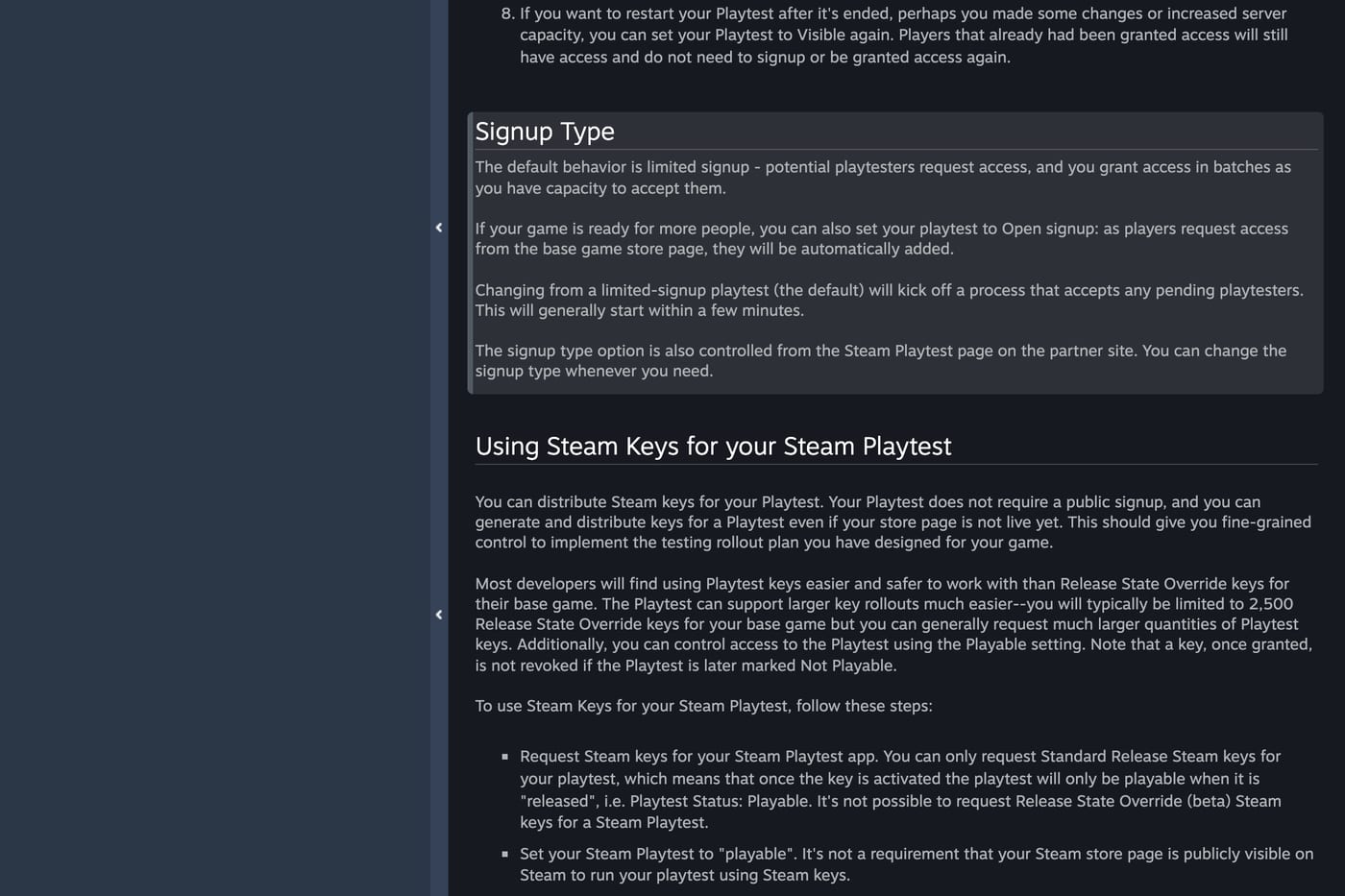
The country filter exists mainly for server load and latency, per Valve's docs. Players get an email when you grant them access, and their status shows on your store page. Steam does not email anyone when the Playtest itself becomes playable, so you have to announce that yourself.
Playtest keys
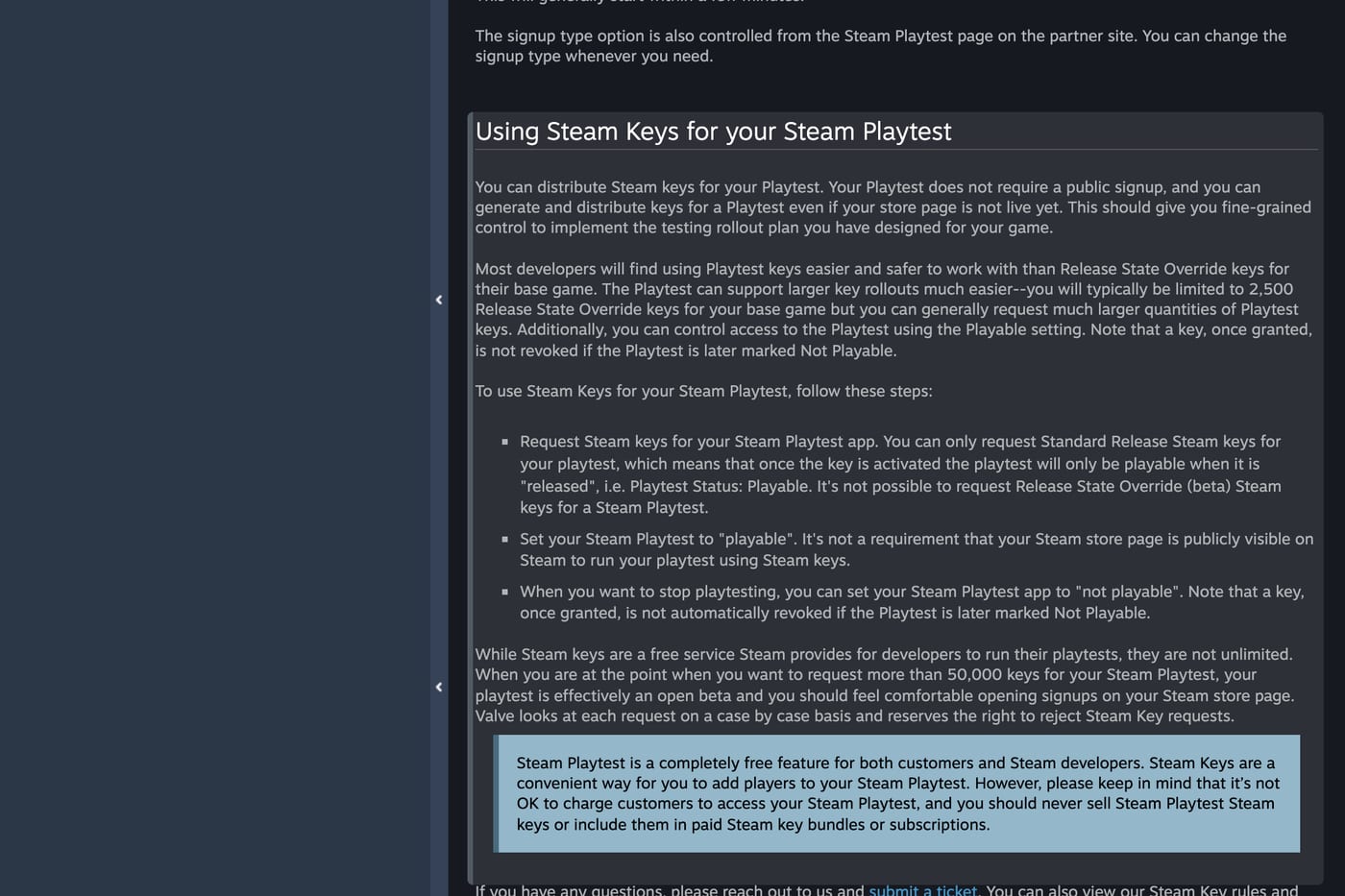
You can skip public signups entirely and distribute Standard Release keys for the Playtest app. The store page does not even need to be public. Some details from the documentation:
- The Playtest must be set to Playable for keys to work.
- Keys are not revoked when you later set it to Not Playable.
- Playtest keys can usually be requested in much larger quantities than base game Release State Override keys, which are typically limited to 2,500.
- Above 50,000 keys, Valve considers the test effectively an open beta and suggests opening store signups instead. Requests are reviewed case by case.
If you want a closed, NDA-style test, Valve suggests two routes: Playtest keys with the store visibility set to Hidden, or Release State Override keys on the main app. Either way you run your own registration and NDA process. For how to hand out and track keys safely, see our guide to game key distribution.
Friend invites (experimental)
For multiplayer games, Valve offers friend invites: each player with access can invite 1, 2 or 3 friends (you choose), and those friends can invite theirs. Friendships must be at least 30 days old. Growth compounds fast, so Valve recommends it only if your servers can take it, and you can pause invites at any time.
How to set up a Steam Playtest
The steps below follow the Steamworks Playtest page.
- Create the Playtest app. Go to your game's Associated Packages & DLC page in Steamworks and create a Playtest.
- Fill in the required assets. Library capsule and community assets are mandatory. You can localize the customer-facing name, but you cannot change it after release, so pick it carefully.
- Pass review. The store checklist for a Playtest covers only capsule images and icons, but the build still goes through review. Valve says build review typically takes 3 to 5 business days and asks you to plan for at least 7. In November 2026 Valve said reviews were taking up to 12 business days, so leave extra room.
- Enable signups. In the main game's Edit Store Page tools, open the Special Settings tab and turn on Playtest signups.
- Upload your build the same way you would for the main game or a demo, or request Playtest keys.
- Grant access. When the build is live, use the "Manage Your Playtest" link in the Playtest's Steamworks settings to choose Limited or Open and let players in.
- End it cleanly. Hide the store signup first, then set the Playtest to Not Playable. Steam will no longer launch the app. To run another round later, make it visible again; players who already had access keep it.
Valve describes four useful states: Not Playable with no signups (setup and after the test), Not Playable but accepting signups (to build a waiting list before a round), Playable and accepting signups, and Playable with signups closed (keep current testers, add no one new). A common pattern is to open signups a few weeks before the build goes live, let the pool grow, and then open the gates. tinyBuild describes doing exactly this across several of its 2024 games and says "a few weeks is usually enough" to build the pool.

If you need to start fresh, you can reset a Playtest. That removes every participant, disables all Playtest keys (including unused ones) and cannot be undone. It requires the Playtest to be Not Playable, Hidden, Limited, with friend invites paused.
Playtest vs demo: when to run which
Both are free, both live on separate app IDs, and both appear on your main store page. The difference is what Valve does around them.
| Steam Playtest | Steam demo | |
|---|---|---|
| Own store page | No, signup button on main page | Optional (demo docs) |
| Player reviews | Playtest players cannot review the main game | A demo with its own store page collects its own reviews |
| Wishlist notification | None | One optional notification to wishlisters, which you trigger within 14 days of first release |
| Access control | Limited, Open, keys, country filter | Public once playable |
| Counts for Next Fest | No | Yes, a public demo is required |
| Can be turned off | Yes, set Not Playable | Yes, deactivate it, but the first playable date and its one-time notification window are fixed |
Chris Zukowski spells out the strategic angle in his breakdown of Valve's 2024 demo changes: playtests and betas are not counted as a demo release, so you do not burn the one-time wishlist email. He recommends getting strangers to play your build before your public demo goes out, and a Playtest is the cleanest way to do that on Steam.
Run a Playtest when:
- Your build is rough and you want feedback without public reviews.
- You need to stress test servers or matchmaking, especially for multiplayer.
- You want to test the build that will become your demo before you spend the demo's one-time wishlist email. Our guide on how to market a Steam demo covers that launch in detail.
Run a demo when the build is polished, you have enough wishlists that the notification email will matter, and you want a public presence in the demo section and in Next Fest.
Playtests and Next Fest
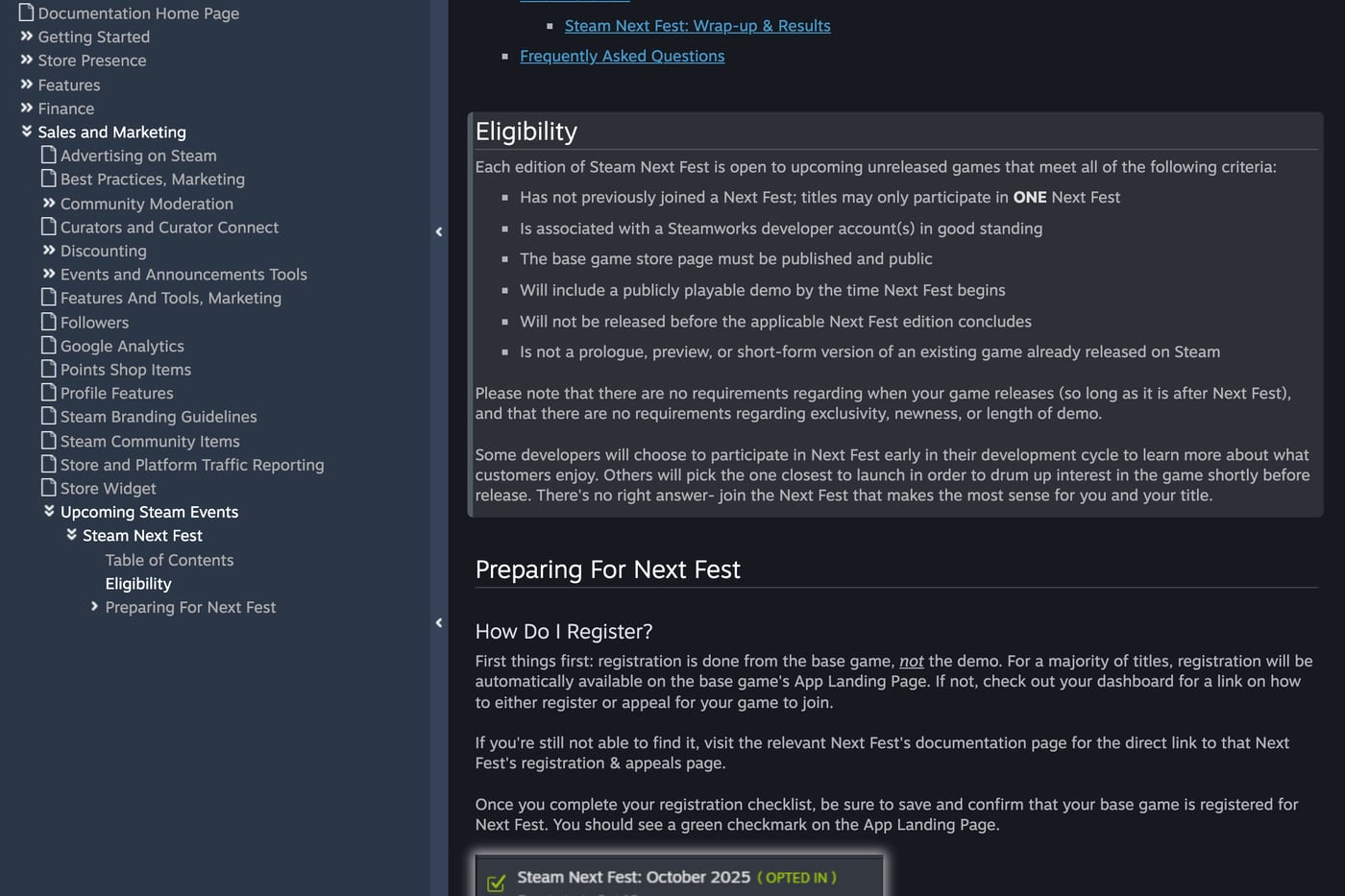
You can still enter Next Fest if you have run a Playtest. Valve says on its Next Fest page that using Steam Playtest "does not affect eligibility," but it does "not recommend having a Playtest live during Steam Next Fest" because it splits players between two builds. Close your Playtest before the festival and push everyone to the demo. Our Steam Next Fest marketing guide covers the rest of that plan.
Does a Playtest affect wishlists or visibility?
Directly, no. The Playtest documentation states that joining or leaving the Playtest does not change the player's wishlist for the main game, that someone who only played the Playtest cannot review the main game, and that Playtest playtime does not count toward refunds, trading cards or achievements on the main game. Valve's docs do not describe any store placement or algorithm boost for a Playtest.
What a Playtest can do is send people to your store page, because the signup button lives there. Every player who comes to sign up sees your trailer and the wishlist button. Valve's wishlist documentation says wishlists can be "an important factor in determining where your game appears on Steam," and also that "Steam is designed to offer a personalized view to each player." So treat a Playtest as a reason for people to visit your page and wishlist, not as a visibility lever in itself. Ask testers to wishlist in your announcement and in the game's main menu, because Steam will not do it for you.
How to get playtesters
A signup button does nothing if nobody visits your page. These are the sources that tend to work:
- Your own channels. Post a Steam Event or Announcement on the main game when signups open and again when the build goes live. Valve recommends events for scheduled windows because Steam sends no status emails.
- Discord, newsletter and social. Link to the store page, not the Playtest, so people can wishlist while they sign up.
- Content creators. A playable build is enough for creators to make videos, and Zukowski notes a playtest still gives creators something playable without spending the demo notification. Use keys so you control who gets in. Our guide on how to find gaming influencers covers outreach.
- Short-form creator campaigns. If you need volume quickly, paying short-form creators to post about the game and point viewers at your store page is one way to fill a signup pool. Track it the same way you track wishlists.
Expect a gap between signups and active players. Not everyone who requests access will launch the build, so size your Limited waves by how many players you actually need online, not by the signup count.
Collecting feedback
Steam does not give you a feedback tool. Valve's docs leave it to you and suggest forums, Discord, bug trackers or a website, plus a feedback button in your main menu. Some practical setup:
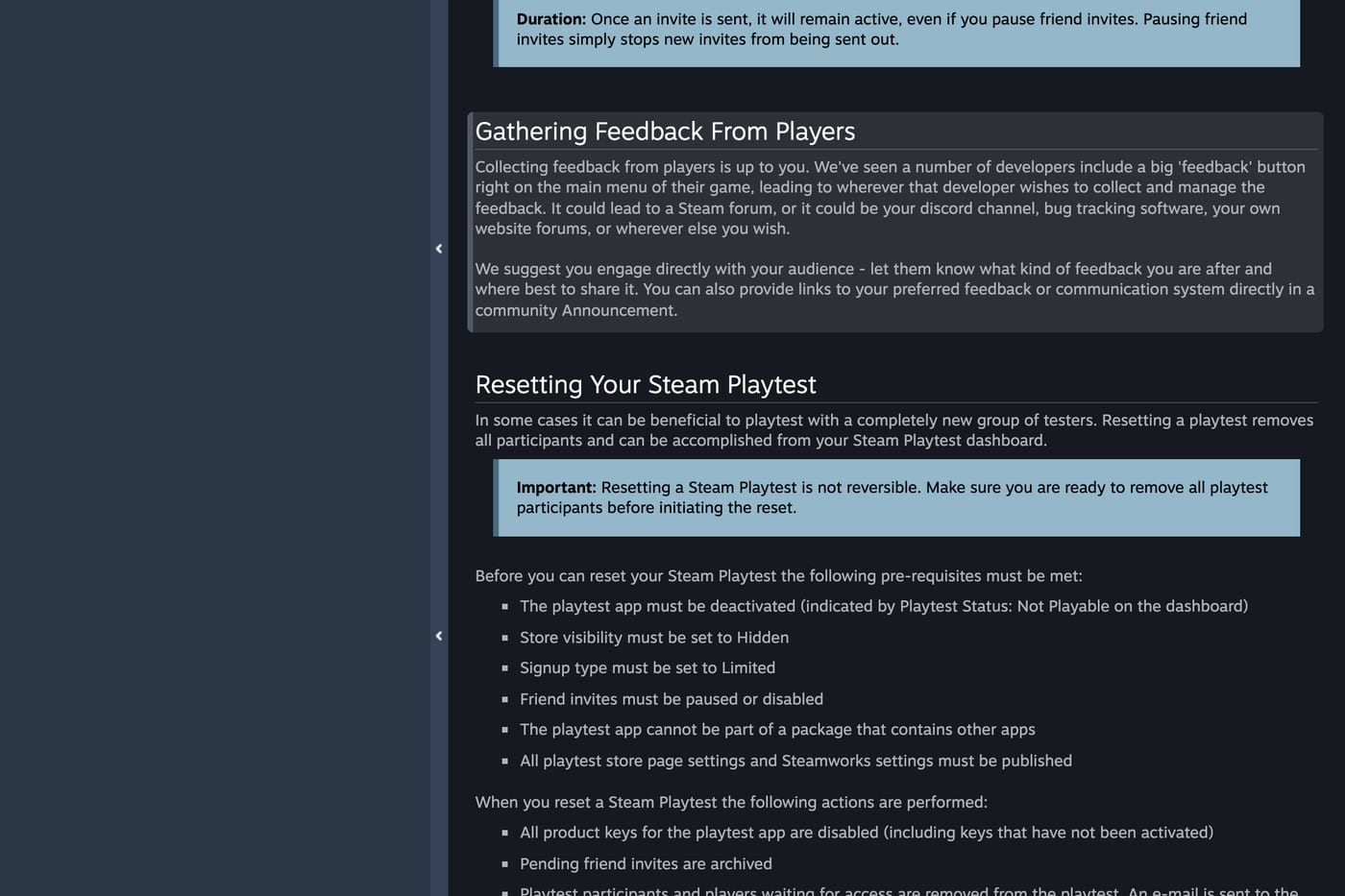
- Put a feedback link or in-game form on the main menu and the pause menu, with the build version attached.
- Use a short survey after the first session, while players still remember the first 10 minutes. That is where most drop-off problems hide.
- Log basic telemetry: session length, where players quit, crash reports.
- Run a Discord channel per round so feedback is tied to a specific build.
- Close the loop: post a Steam Event with what you changed. It shows testers their input mattered and keeps them around for the next round or the demo.
If you are planning the whole road to release, the Steam launch checklist shows where a Playtest fits next to your store page and demo.
FAQ
Is Steam Playtest free?
Yes. Valve charges nothing to developers or players, and you are not allowed to charge for access, sell Playtest keys or add in-game purchases.
Does a Steam Playtest affect my wishlists?
Not directly. Joining or leaving a Playtest does not change the player's wishlist for your main game, but people visiting your page to sign up can wishlist it at the same time.
Can Playtest players leave reviews on my game?
No. Valve says a player who only played the Playtest cannot review the main game.
Can I use a Playtest instead of a demo for Steam Next Fest?
No. Next Fest requires a publicly playable demo. Running a Playtest does not affect eligibility, but Valve recommends not having one live during the festival.
How do I end a Steam Playtest?
Turn off signups on the store page, then set the Playtest to Not Playable. Players keep their access if you reopen it later.
Is a Steam Playtest confidential?
No. There is no NDA. For a confidential test, use Playtest keys with a Hidden store page or Release State Override keys, and run your own NDA process.
When should I run a Steam Playtest?
Valve says the most common use is before release, after your Coming Soon page is live. After launch it mainly makes sense for free-to-play games.
Sources: Steamworks: Steam Playtest; Steamworks: Demos; Steamworks: Steam Next Fest; Steamworks: Wishlists; Steamworks: Review process; How To Market A Game: Steam's demo update; Game Developer: Playtest live for all devs; tinyBuild: 3 million wishlists; checked November 2026.
Get a wishlist forecast for your game
Send us your Steam page. We estimate views, creators and cost per wishlist before you spend anything.
Keep reading
How Many Copies Do Indie Games Sell? Real Steam Numbers by Tier
Most Steam indie games sell under 1,000 copies. Real numbers by tier…
Game Marketing Hook: How to Find, Test and Show Yours
What a game marketing hook is, how to test one cheaply with…
How to Name Your Game: Searchable, Memorable and Legally Safe
How to name your game: pass the Steam, Google and trademark checks…